Step-by-step guide to registering in SpreadRadar
Guide: how to register in SpreadRadar and install the script for ArbitTerminal.
To use SpreadRadar together with ArbitTerminal, you need to:
1️⃣ Log in to SpreadRadar via Telegram
2️⃣ Install the OrangeMonkey extension in Chrome
3️⃣ Install the SpreadRadar Links script
4️⃣ Check that the script works in ArbitTerminal
STEP 1. Log in to SpreadRadar
Open the website:
Click the button:
✅ Log in via Telegram
In the Telegram window, enter the phone number linked to your Telegram account and click:
✅ Next
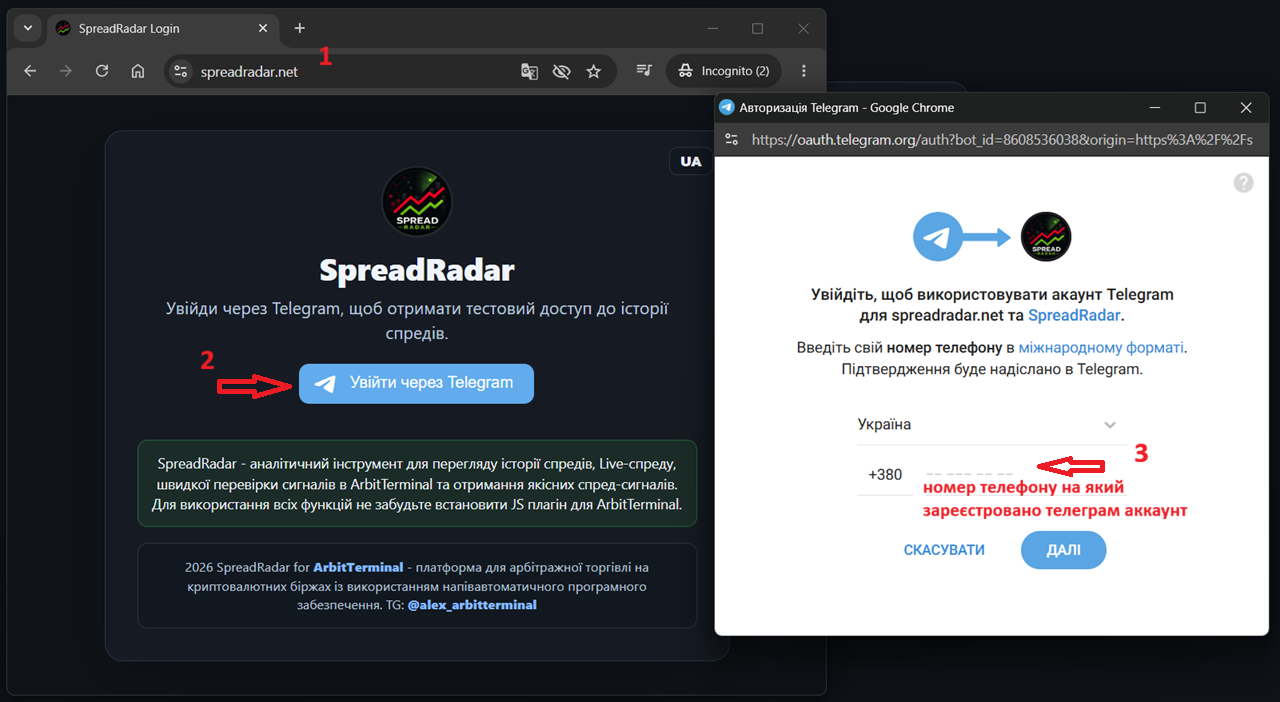
STEP 2. Confirm the Telegram login
You will receive a service message in Telegram asking you to confirm the login to spreadradar.net.
Click:
✅ Confirm
If you did not make this request, click “Decline”.
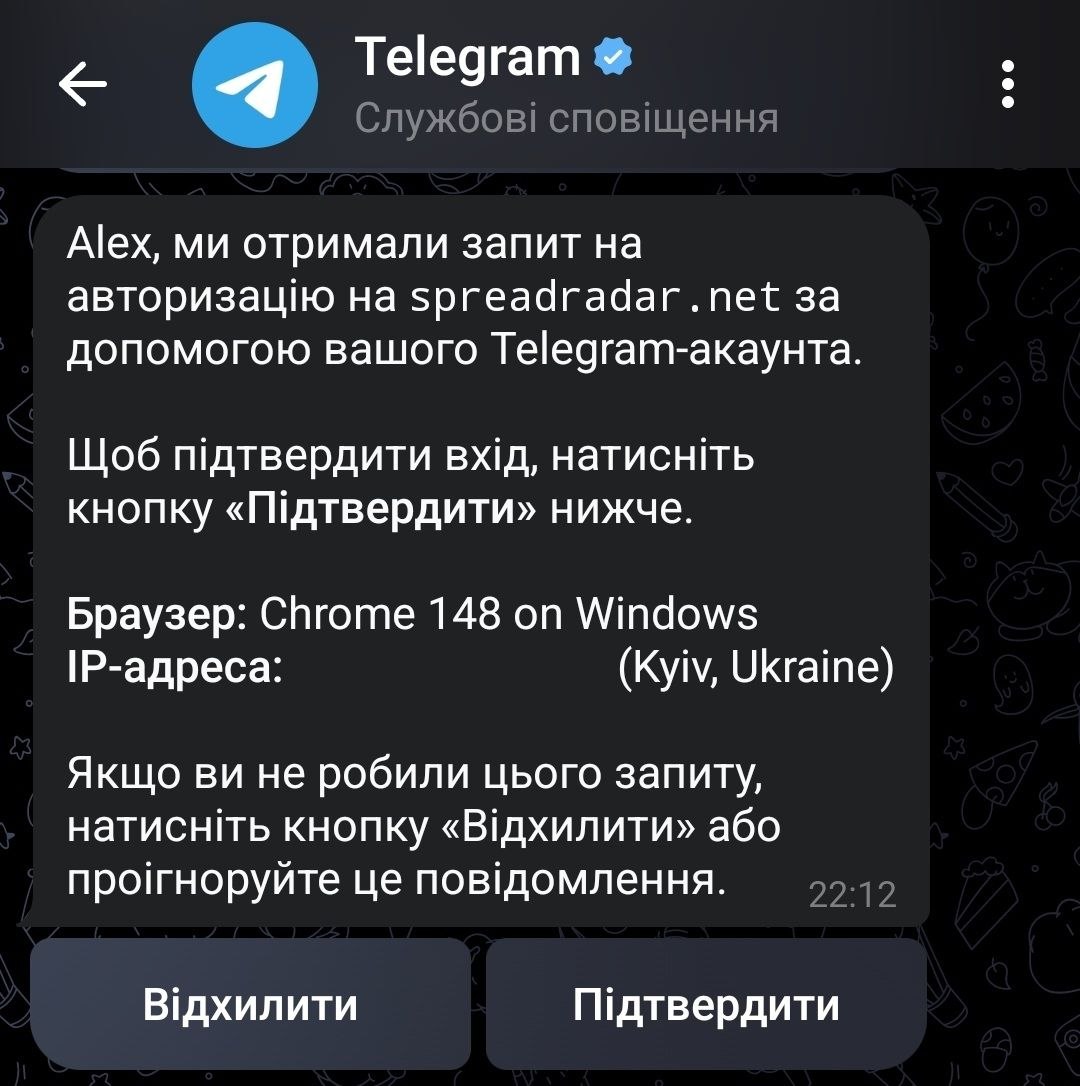
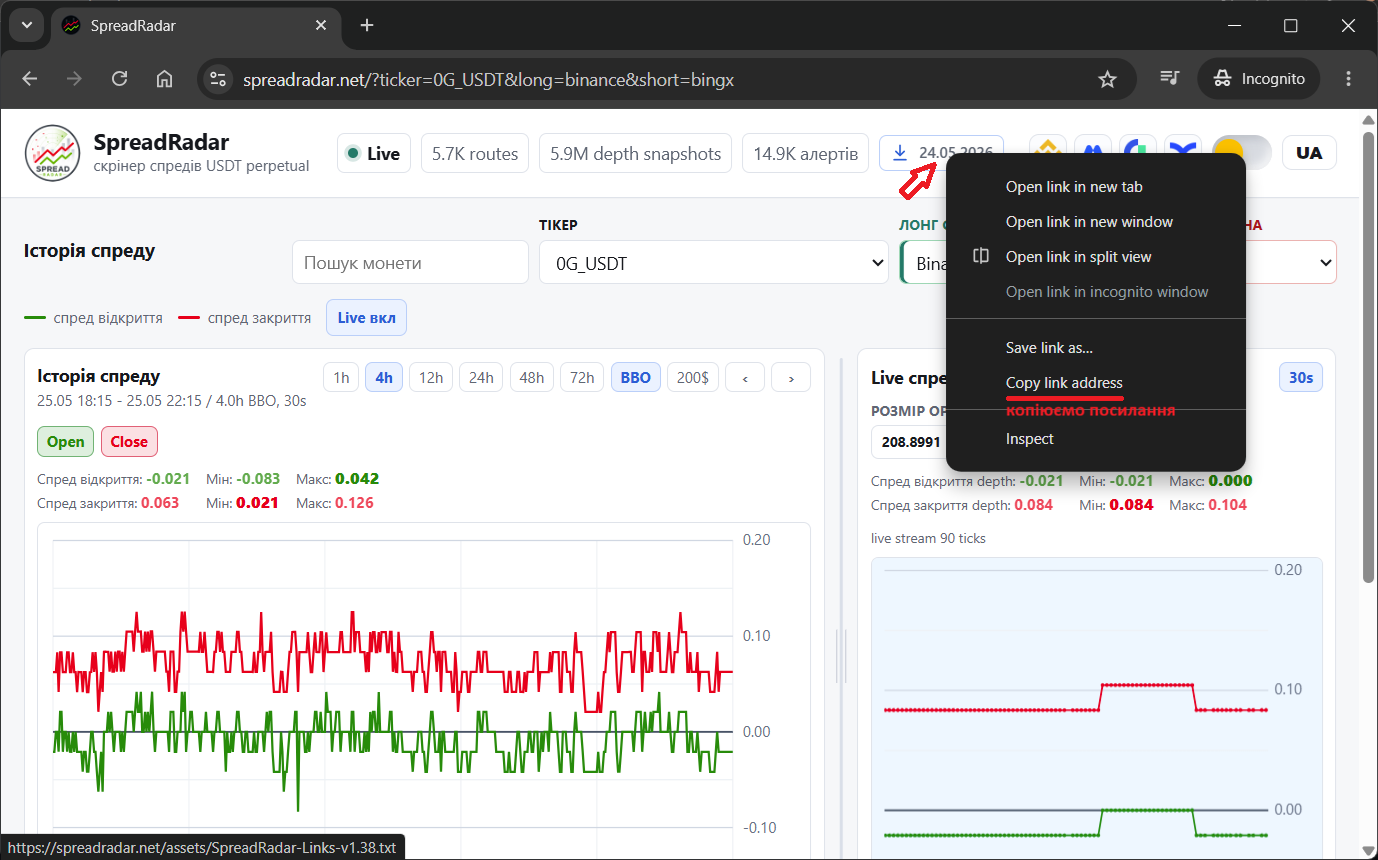
STEP 3. Copy the script link
After logging in to SpreadRadar, find the script download button at the top of the page:
SpreadRadar-Links.txt
Right-click it and select:
✅ Copy link address
or
✅ Copy link
The link looks like this:
https://spreadradar.net/assets/SpreadRadar-Links.txt
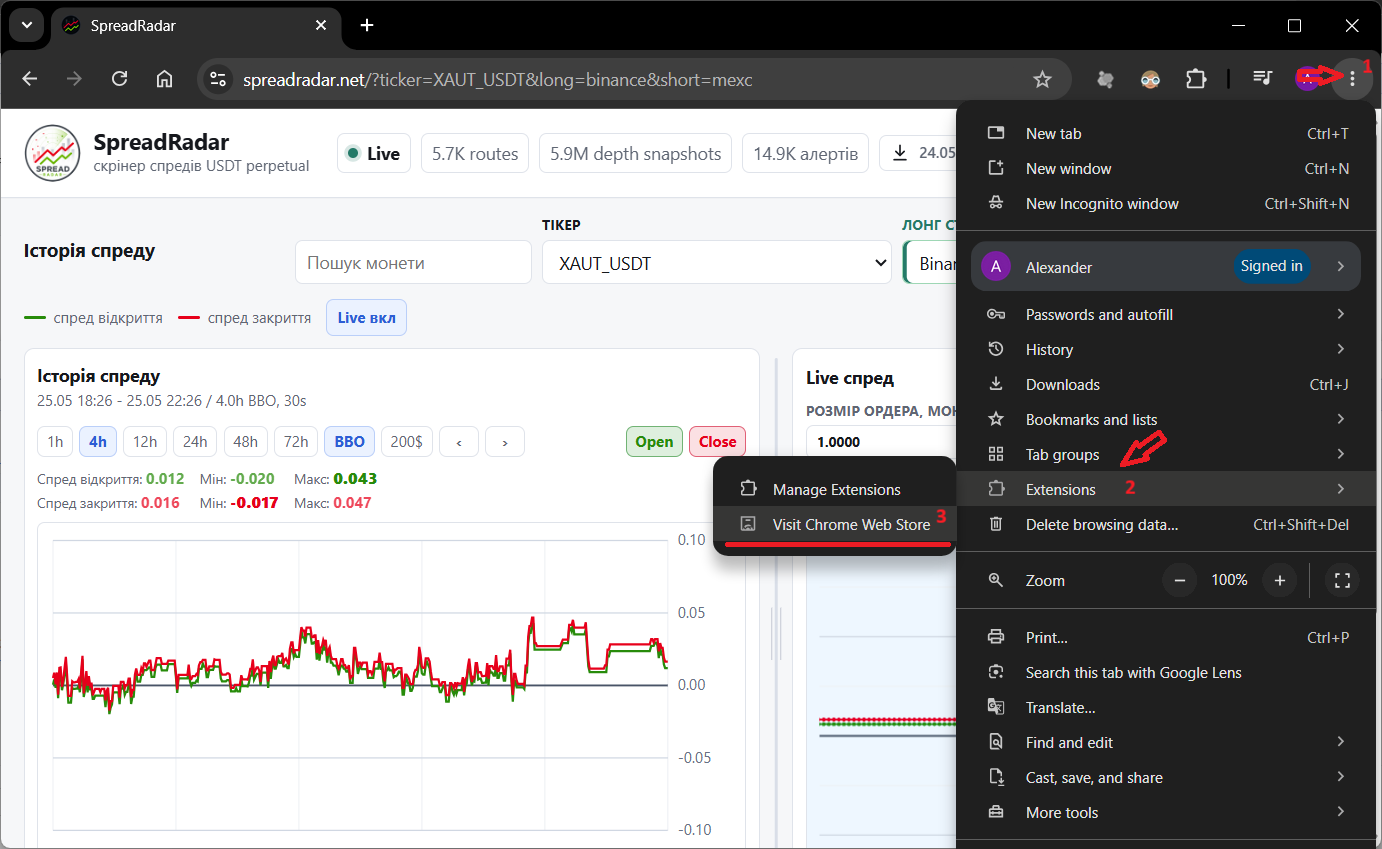
STEP 4. Go to the Chrome Web Store
In Chrome, open the menu in the top-right corner:
⋮
Then go to:
Extensions → Visit Chrome Web Store
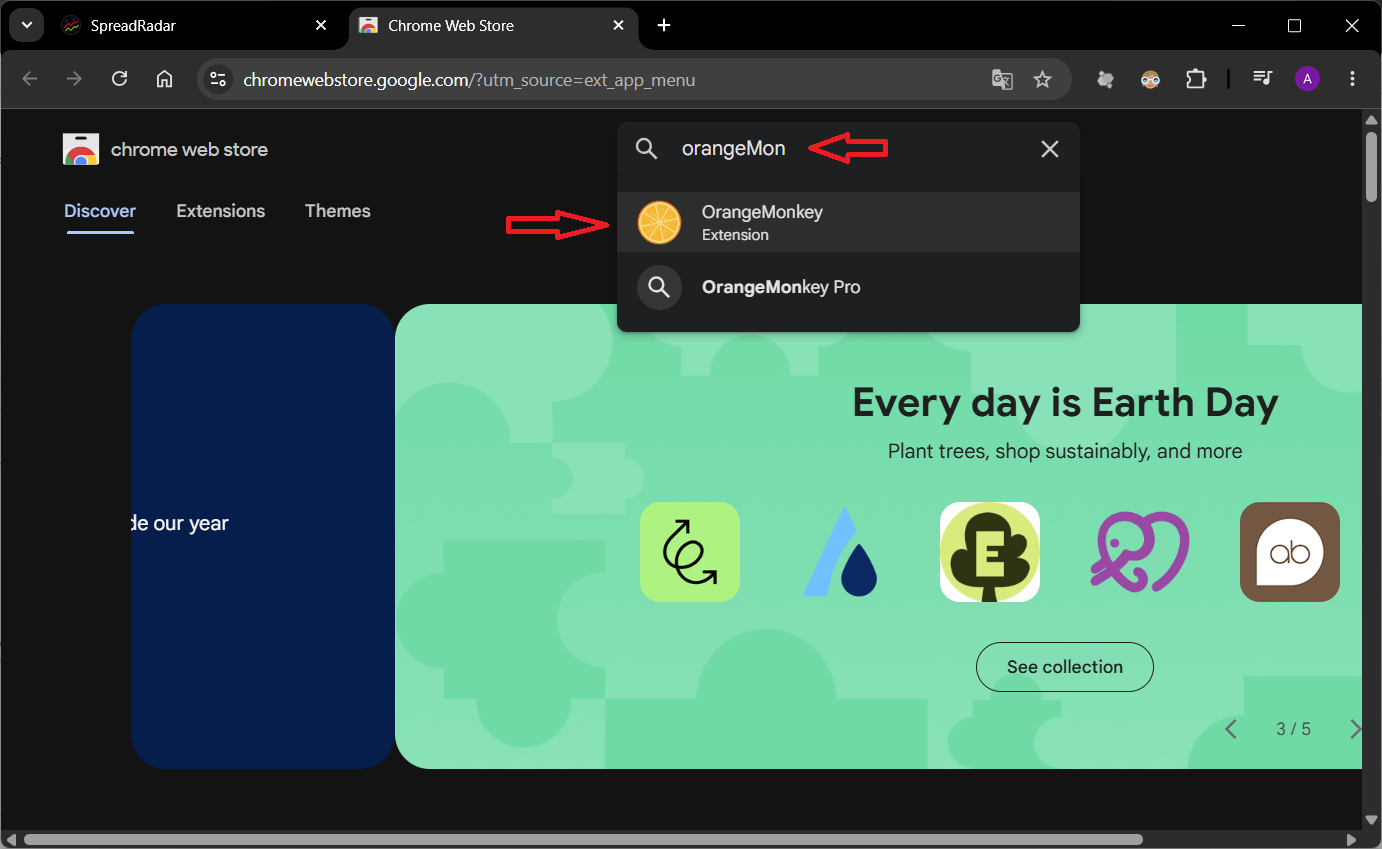
STEP 5. Find OrangeMonkey
In Chrome Web Store search, type:
OrangeMonkey
Select the OrangeMonkey extension.
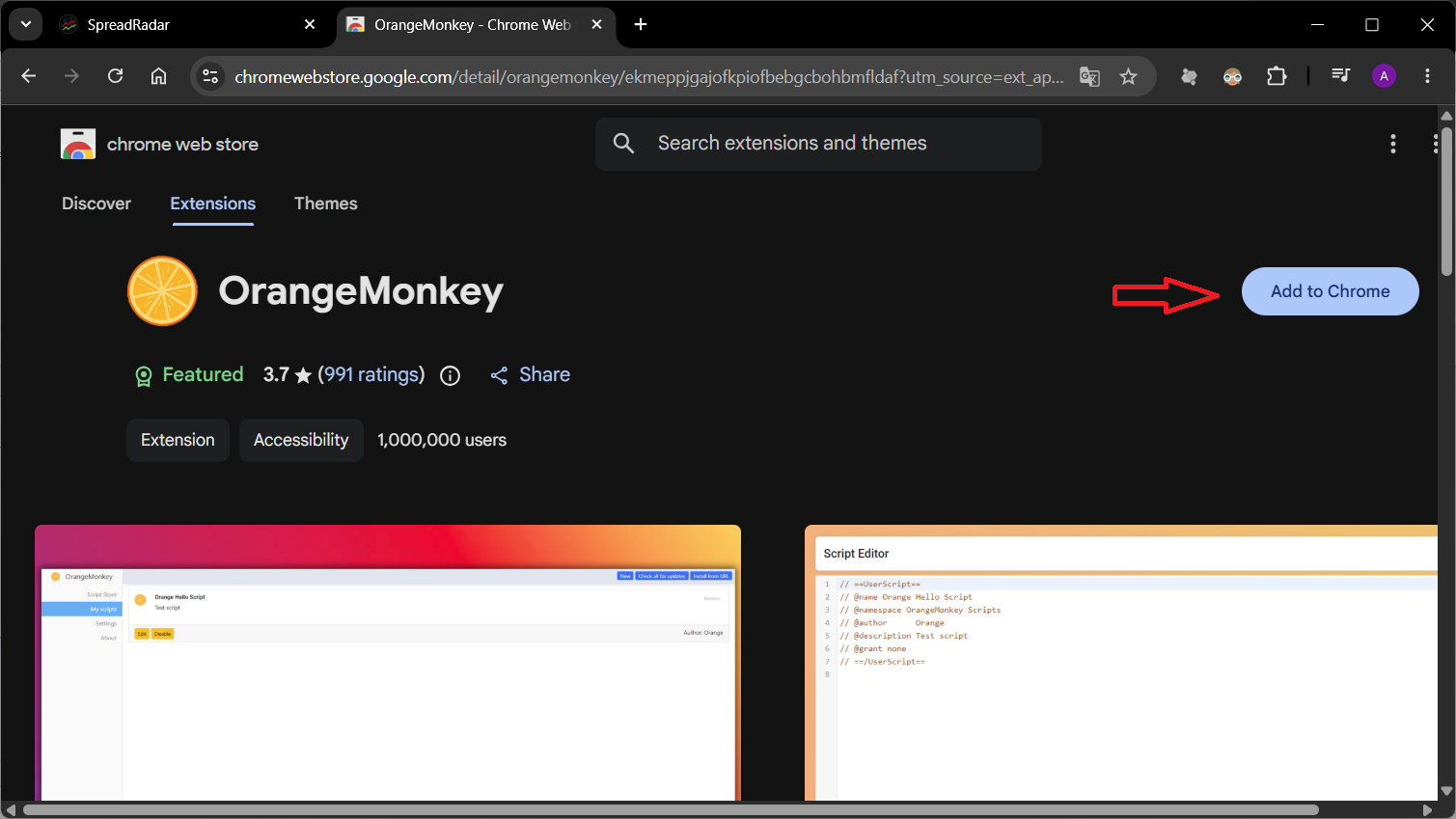
STEP 6. Install OrangeMonkey
On the OrangeMonkey page, click:
✅ Add to Chrome
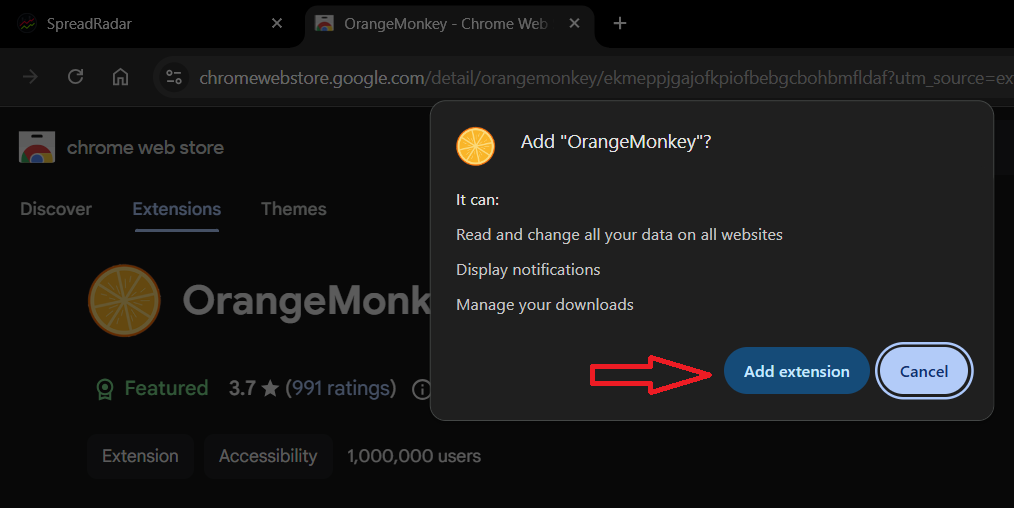
Then confirm the installation:
✅ Add extension
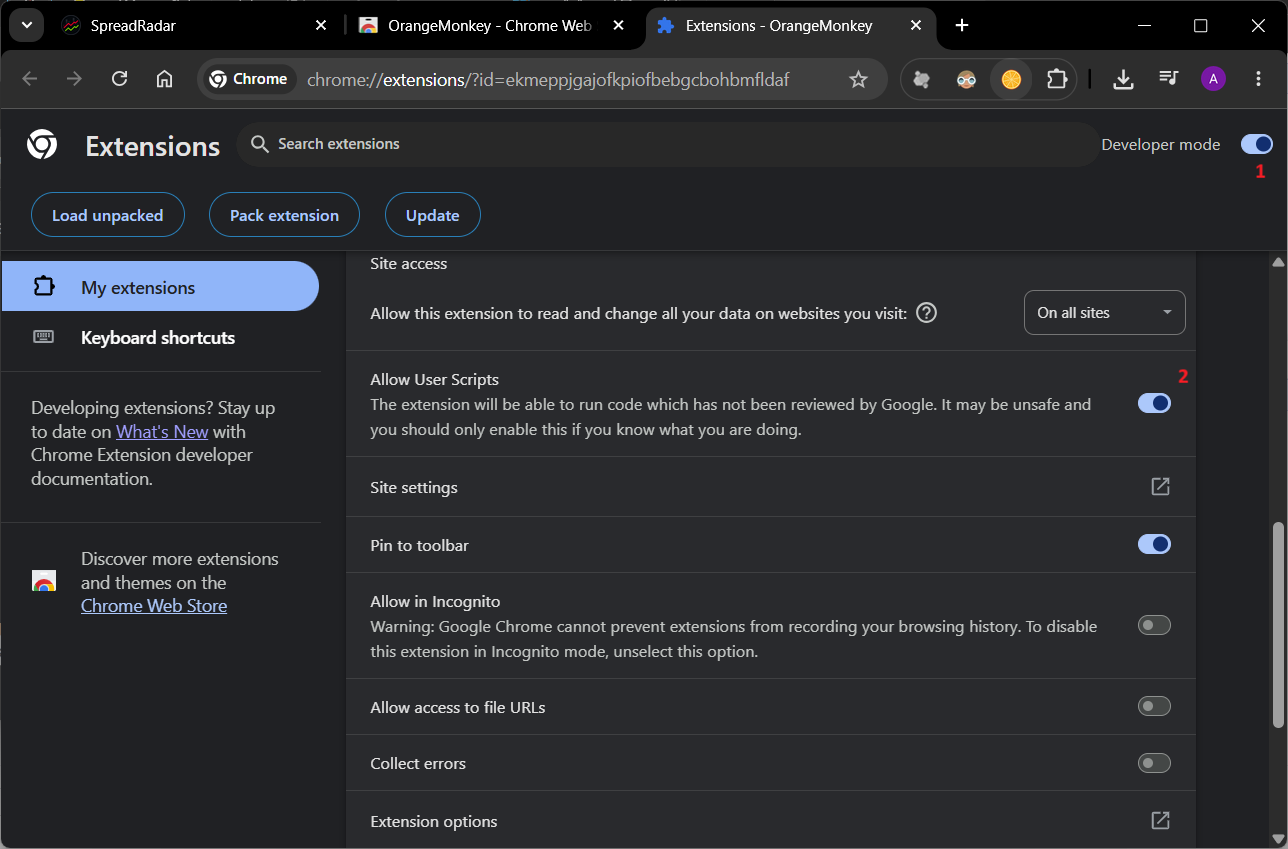
STEP 7. Enable User Scripts
After installing OrangeMonkey, open the extension settings page.
Enable:
✅ Developer mode
✅ Allow User Scripts
This is required so Chrome can run user scripts.
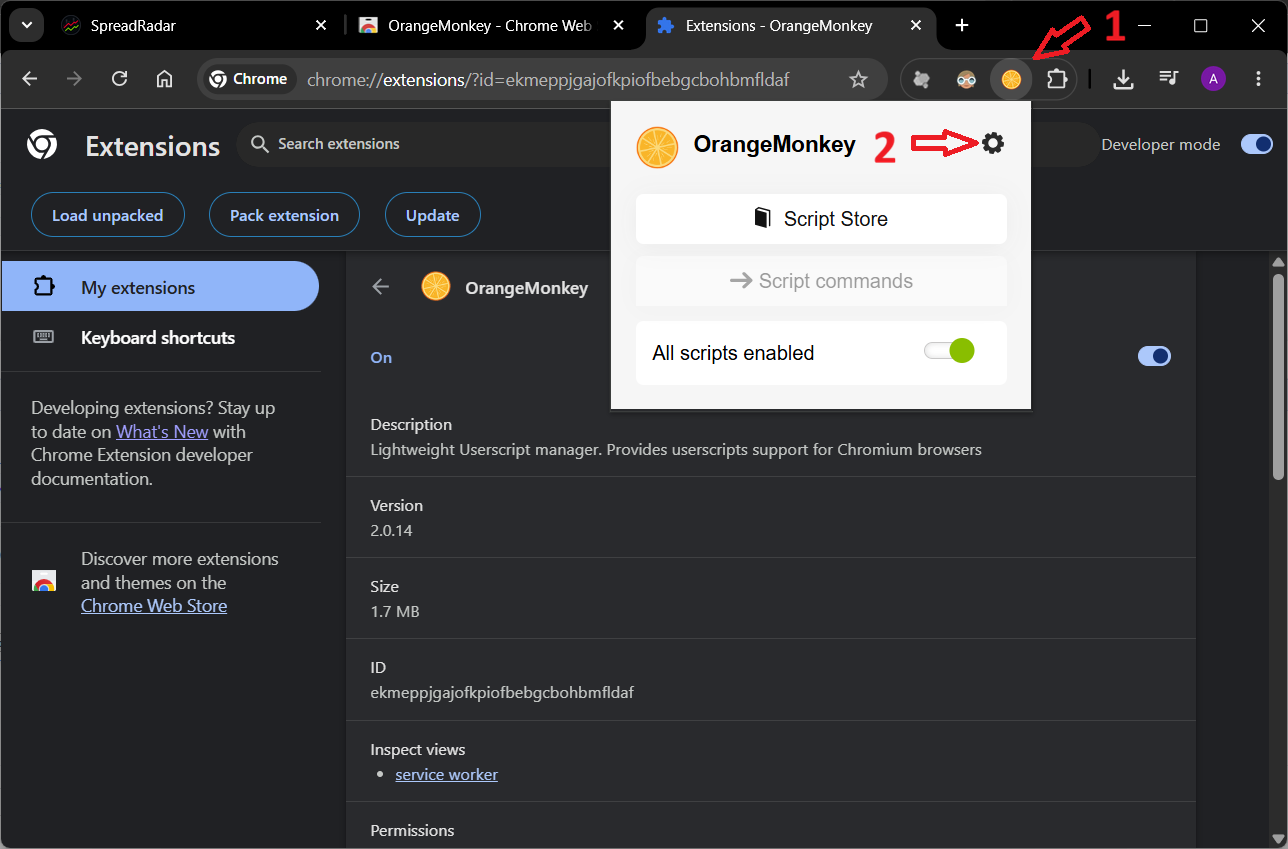
STEP 8. Open OrangeMonkey
Click the OrangeMonkey icon on the browser toolbar.
Then click the settings icon:
⚙️
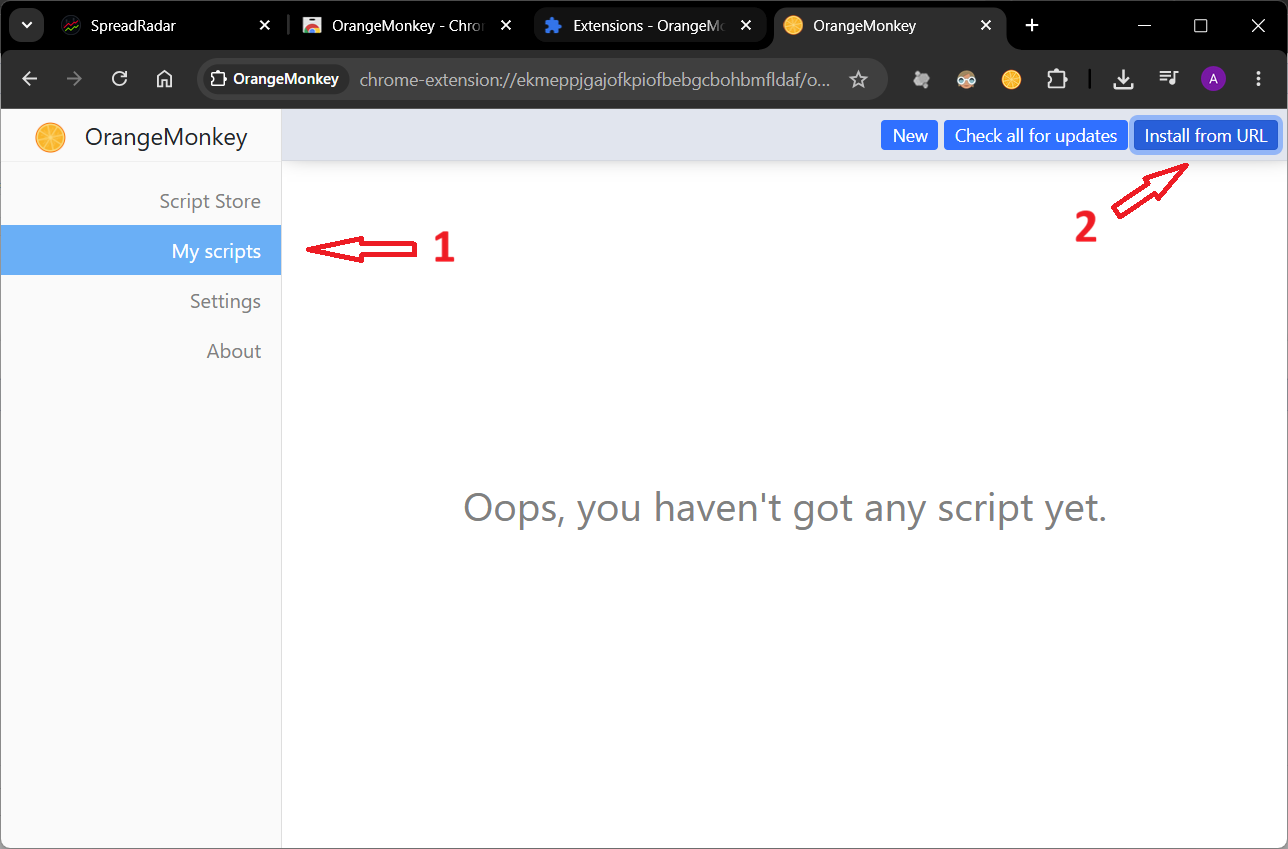
STEP 9. Go to My scripts
In the OrangeMonkey menu, open:
My scripts
Then click:
✅ Install from URL
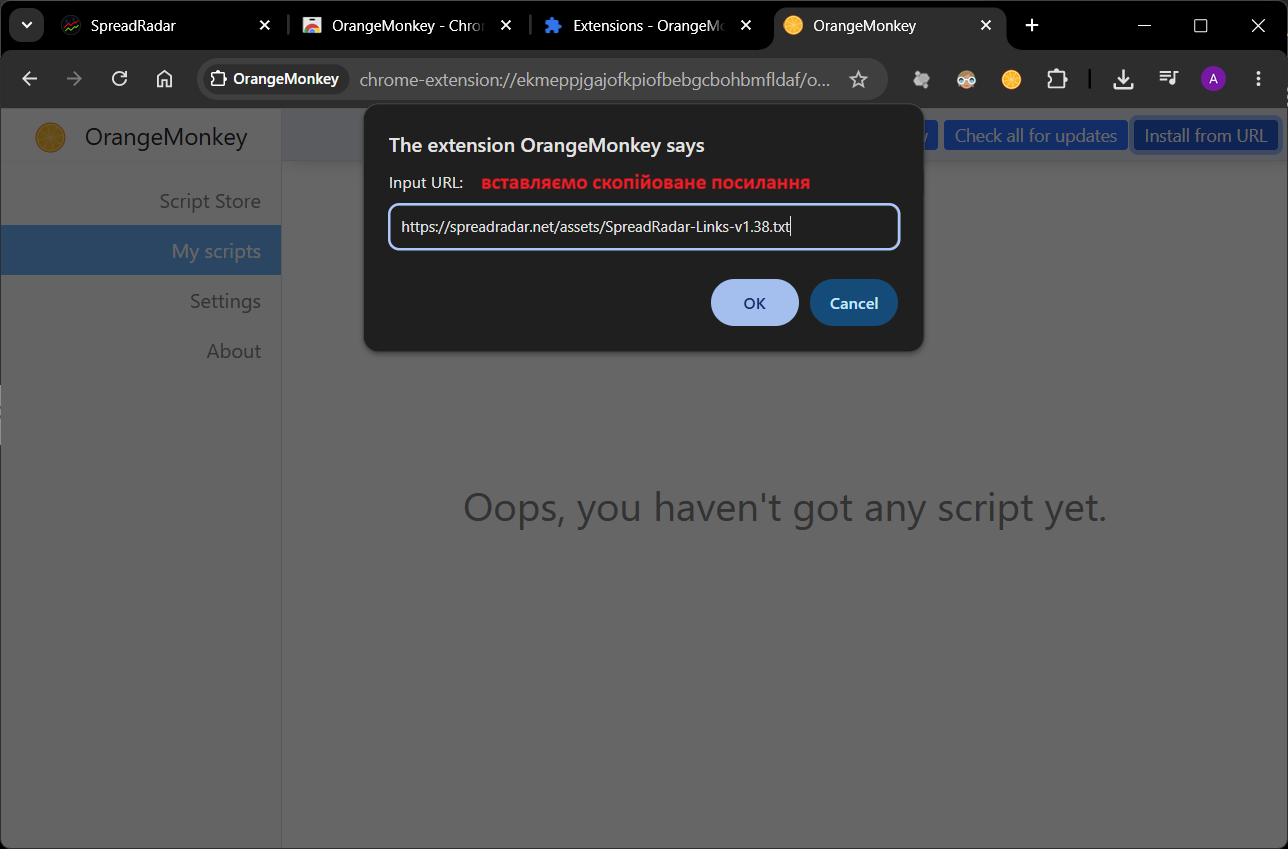
STEP 10. Paste the script link
In the Input URL field, paste this link:
https://spreadradar.net/assets/SpreadRadar-Links.txt
Click:
✅ OK
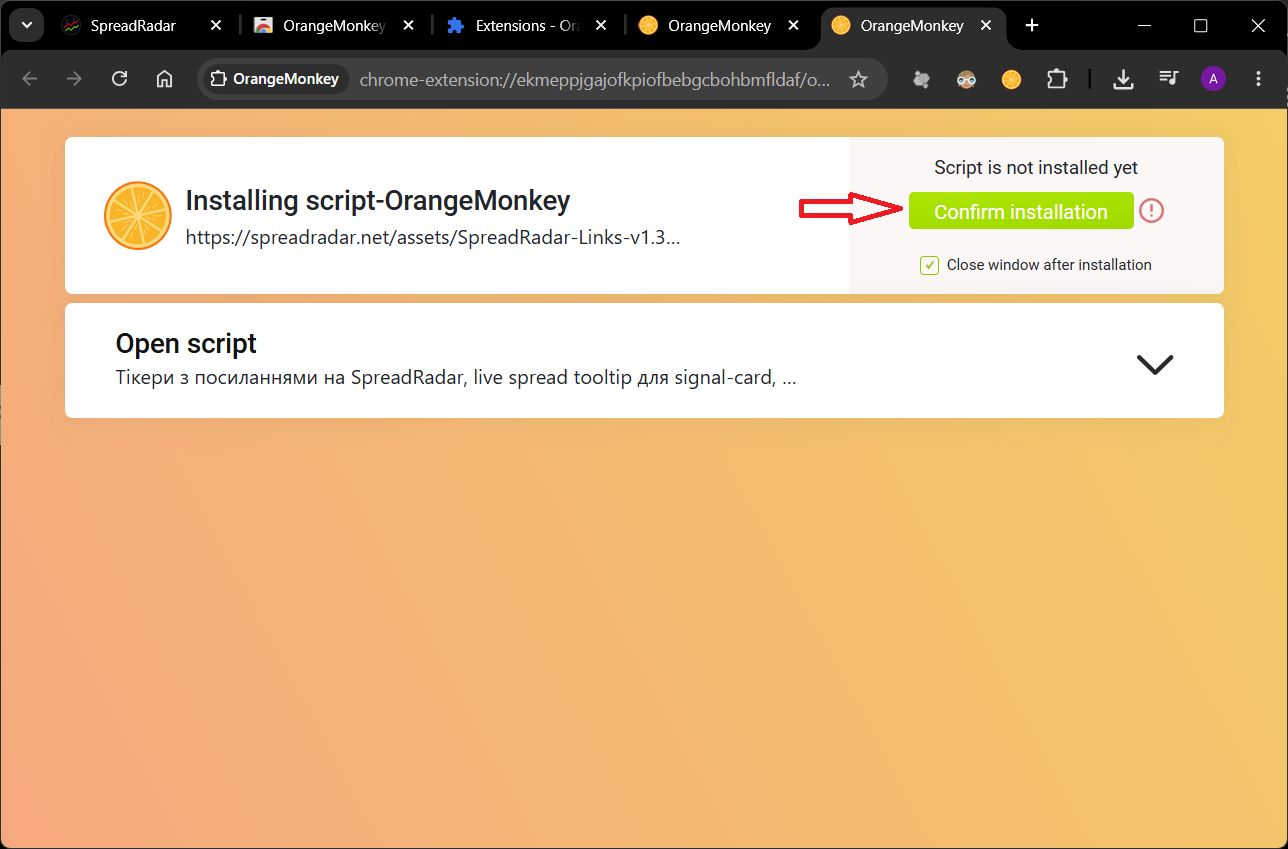
STEP 11. Confirm the script installation
The script installation page will open.
Click:
✅ Confirm installation
STEP 12. Check that the script is installed
The script should appear in the My scripts list:
SpreadRadar Links for AT
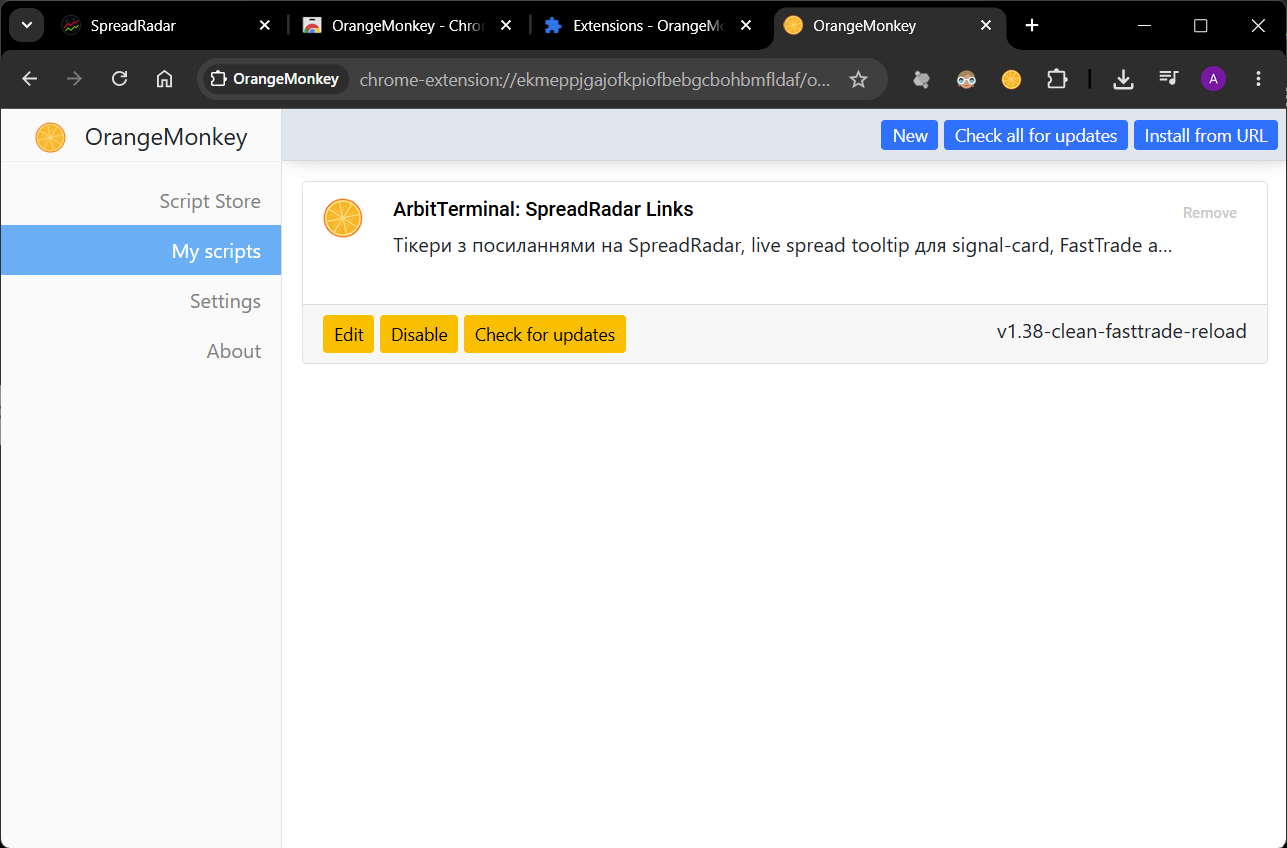
STEP 13. Check how it works in ArbitTerminal
Open ArbitTerminal:
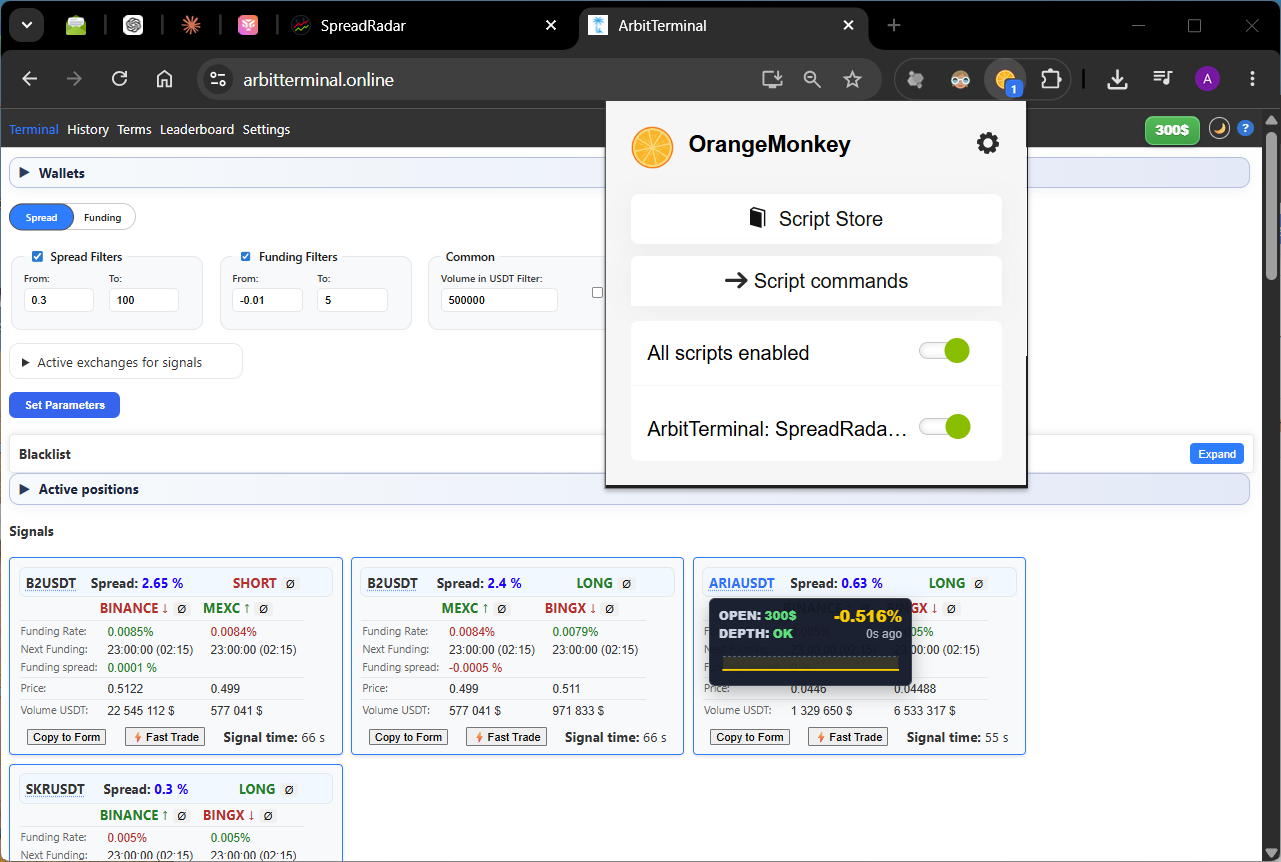
Click the OrangeMonkey icon.
The following should be enabled:
✅ All scripts enabled
✅ ArbitTerminal: SpreadRadar Links
After that, a green Order Size button should appear in ArbitTerminal, for example:
300$
Available options:
100$ / 200$ / 300$ / 400$ / 500$
If nothing changed, refresh the page:
Ctrl + F5
How to check that everything works?
Hover your mouse over a ticker in an ArbitTerminal signal card.
A SpreadRadar tooltip with live data should appear:
✅ OPEN
✅ DEPTH: OK
✅ mini spread chart
If the tooltip appears, the script is installed correctly.
⚠️ If something does not work
Check:
- Whether you logged in to SpreadRadar via Telegram
- Whether OrangeMonkey is installed
- Whether Developer mode is enabled
- Whether Allow User Scripts is enabled
- Whether the ArbitTerminal: SpreadRadar Links script is installed
- Whether you opened exactly arbitterminal.online
- Whether you refreshed the ArbitTerminal page with F5
If the tooltip says that login or access is required, open spreadradar.net, log in via Telegram, and check that your access is active.